
Exporting Lessons to SCORM
This article explains how to export individual lessons or entire paths in SCORM format, so you can assign Security Journey training through your organization’s Learning Management System (LMS).
If you want learners to complete Security Journey training directly inside your LMS, exporting to SCORM is the recommended approach.
Prerequisites
Before exporting content to SCORM, make sure you have:
-
SSO authentication enabled
(SCORM exports require SSO. If needed, set up SSO first.) -
An LMS that supports SCORM 1.2 or 2004 (3rd or 4th Edition)
Export an Individual Lesson to SCORM
-
Log in as an Admin.
-
Open the Full Catalog.
-
Find the lesson you want to export.
-
Select the Export button (top-right corner of the lesson).
- Select your SCORM version
-
Choose Generate.
✅ The lesson will download to your computer as a SCORM file, which you can then upload to your LMS.
Export an Entire Path to SCORM
-
Navigate to the Recommended Path or Custom Path you want to export.
-
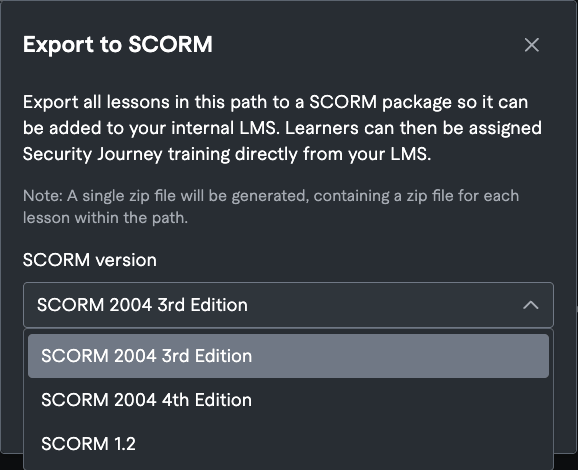
Select Export to SCORM.
- Select your SCORM version
-
Choose Generate.
✅ Each lesson will export as its own ZIP file, packaged inside a larger parent ZIP file for easy LMS upload.
Available SCORM Versions
Security Journey provides downloadable SCORM packages in the following formats to support a variety of Learning Management Systems (LMS):
- SCORM 2004 (3rd Edition)
- SCORM 2004 (4th Edition)
- SCORM 1.2
Learner Experience (What learners will see)
When learners launch the SCORM content in your LMS:
-
The lesson opens and runs through the Security Journey platform
-
Learners won’t be redirected to the main platform map/list view
-
Completion is automatically sent back to your LMS and recorded in Security Journey reporting