
Aspen is an AI assistant built into Security Journey that takes the busywork out of managing training assignments. Instead of clicking through reports and user lists, you ask Aspen a question in plain English, and it pulls the answer from your live training data.
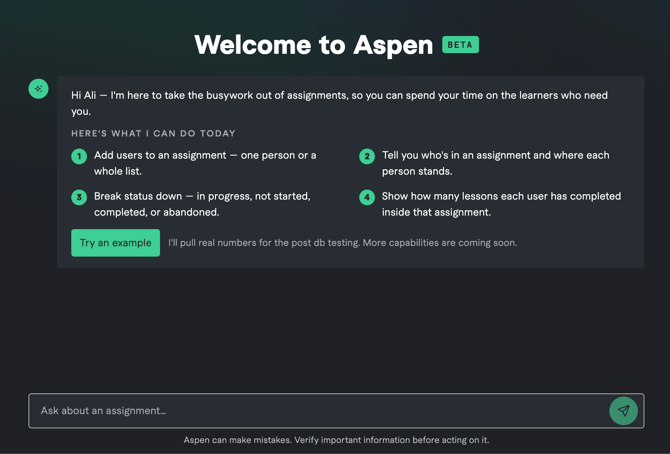
Today, Aspen focuses on two jobs that Admins do constantly:
- Adding learners to assignments — one person or a whole list
- Reporting on assignment progress — who's done, who hasn't started, and how far along everyone is
Aspen works only within your own organization's data. It reads and writes to your tenant only — it can't see or touch another customer's training.
Getting started
- Open Aspen from your Security Journey admin navigation.
- You'll land on the welcome screen, which lists what Aspen can do today.
- Type a question in the "Ask about an assignment…" box, or select Try an example to see a real report from one of your assignments.
There's nothing to configure. If you're an admin, Aspen already has access to the assignments and users you can manage.
What Aspen can do today
| Capability | What it means |
|---|---|
| Find an assignment | Search your assignments by name, description, audience, or due date |
| Add users to an assignment | Add a single learner or a list of learners by email address |
| Report on participation | See who's in an assignment and where each person stands |
| Break down status | Get counts and names for passed, in progress, not started, and abandoned |
| Show lesson-level progress | See how many lessons each learner has completed out of the total |
| Look up users | Confirm a user exists in your directory before you assign them |
Use case 1: Check the status of an assignment
This is the fastest way to answer "how is this training going?" without building a report.
Try prompts like:
Find the "Secure Coding Fundamentals" assignment and tell me who has passed, who's in progress, and who hasn't started.
How many people have completed the OWASP Top 10 assignment?
Show me everyone in the Q3 Developer Onboarding assignment who hasn't started yet.
Give me a lesson-by-lesson breakdown for the "Everyone Test Assignment."
Which assignments do we have with a due date this month?
What you get back: a status summary with counts for each bucket, a lesson-completion breakdown, and named examples of learners in each state. For large assignments, Aspen returns results in pages — just ask for more if you need the full list.
Understanding the four statuses
| Status | Meaning |
|---|---|
| Passed | The learner completed the assignment and met the passing requirements |
| In progress | The learner has started and has lessons remaining |
| Not started | The learner is assigned but hasn't opened any lessons |
| Abandoned | The learner started the assignment but has paused it to take another assignment or path |
Alongside these, Aspen reports lesson progress as completed-out-of-total — for example, 1/1 lessons completed. On a single-lesson assignment this mirrors the status exactly; on a multi-lesson path it's where you'll see how far along your in-progress learners actually are.
Use case 2: Add users to an assignment
You can add learners by email, either one at a time or as a list.
Try prompts like:
Add nicolas_cage@securityjourney.com to the Everyone Test Assignment.
Add these five people to the Secure Coding Fundamentals assignment: [paste email list]
Is maria_lopez@securityjourney.com already in the Q3 Developer Onboarding assignment? If not, add her.
How Aspen handles changes
Aspen is deliberately careful about anything that modifies your data:
- It confirms before it acts. When you ask Aspen to add someone, it will restate which assignment and which email addresses it's about to change and wait for your go-ahead.
- It won't create duplicates. If a learner is already on the assignment, Aspen tells you so and makes no change.
- It matches emails exactly. Aspen looks up users by their full email address, not by name or partial match.
nicolas.cage@andnicolas_cage@are different people to Aspen. - It flags what it couldn't find. If an address isn't in your directory or is malformed, Aspen reports it back separately instead of silently skipping it.
You can add up to 50 email addresses in a single lookup, so very large batches may need to be split.
Tips for better results
- Name the assignment in quotes.
the "Everyone Test Assignment"is easier for Aspen to match than a paraphrase. - Paste full email addresses. Names, usernames, and partial emails won't resolve.
- Ask for what you actually need. "Just the not-started learners" returns a focused list instead of everyone.
- Stack your asks. You can combine in one message: "Find the Q3 assignment, show me who hasn't started, and add these three people."
- Ask Aspen what it can do. Typing
what tools do you haveorgive me an examplereturns a live description of its current capabilities — useful as the beta evolves.
What Aspen can't do yet
Aspen is in beta, and its scope is intentionally narrow while we expand it. Today it cannot:
- Create, edit, or delete assignments
- Remove learners from an assignment
- Change due dates, passing thresholds, or assignment settings
- Create new users or modify user records
- Search for users by name — email addresses only
- Send reminders or notifications to learners
- Export reports to a file
- Report across multiple assignments at once, or produce org-wide rollups
For anything on this list, use the standard Security Journey admin screens. More capabilities are on the way.
Beta notes
Aspen is labeled BETA in the product, and every conversation carries this reminder:
Aspen can make mistakes. Verify important information before acting on it.
Please take that seriously. Before you act on an Aspen answer in a way that matters — reporting compliance numbers to leadership, escalating to a manager about a learner, or confirming an audit requirement — spot-check the figures against the assignment report in the admin console.
Giving feedback: we want to hear what worked, what didn't, and what you wish Aspen could do.
Contact your Account Manager or use the Feedback Form in the platform to let us know what you think or make feature requests. The Feedback Form can be found by clicking on your User Profile > Help and Support > Provide Feedback or by accessing this URL directly: https://my.securityjourney.com/feedback
FAQ
Does Aspen have access to data outside my organization? No. Aspen is scoped to your tenant, derived from your authenticated session. It can only see the assignments and users you already have permission to manage.
Will learners know Aspen added them? Adding a learner through Aspen works the same way as adding them through the admin console, so any notifications your organization has configured behave identically.
What happens if I ask Aspen for something it can't do? It will tell you plainly rather than guessing. You can always ask what tools do you have to see its current capabilities.
Can I undo something Aspen did? Aspen can't remove learners from an assignment, so any removal needs to be done in the admin console.
Why does Aspen ask me to confirm before adding users? Anything that changes your data gets a confirmation step. Reporting and lookups run immediately without one.