
Overview
Self-Initiated Assessments allow learners to take knowledge assessments on their own time without requiring an admin to assign them first. This feature provides greater flexibility while still supporting structured learning programs when needed.
What Are Self-Initiated Assessments?
Self-Initiated Assessments give users the ability to proactively test their knowledge at any time. Instead of waiting for an assigned assessment, learners can launch one directly from their homepage.
Benefits include:
- Reinforcing learning in real time
- Encouraging continuous engagement
- Empowering learners to take ownership of their progress or identify areas of opportunity
How It Works
- Learners will see a Knowledge Assessment card on their homepage
- The card includes a clear call-to-action to start an assessment
- Learners can launch the assessment whenever they choose
Homepage Experience
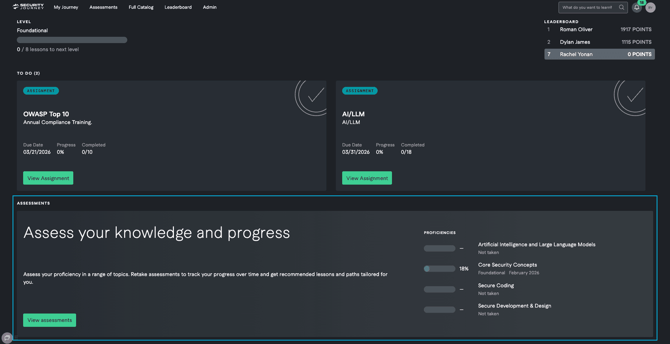
- The Knowledge Assessment card appears prominently on the learner's My Journey page
- The call-to-action allows learners to immediately begin an assessment
Assessment Access Points
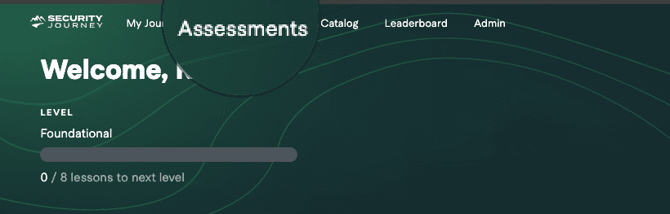
- My Journey Homepage card (when no assessment is assigned)
- Assessments tab in the top navigation (always available)
Important Behavior
- If an assessment is already assigned by an admin, the homepage card will not appear
- Assigned assessments take priority over self-initiated ones
- Learners can still access all assessments through the Assessments tab
Reporting
Admins can track and review Self-Initiated Assessment activity using the existing Assessment Reporting tools.
All self-initiated assessments are included alongside assigned assessments, giving you a complete view of learner engagement and progress.
Where to Find Self-Initiated Assessment Data
.png?width=670&height=286&name=Screenshot%202026-04-29%20at%204.36.00%20PM%20(1).png)
- Navigate to Admin
- Select Reporting
- Click on Assessments
- Locate Self-initiated Assessments in the assessment list
How It Works
- Self-initiated assessments appear as a single aggregated entry in reporting
- Click into Self-initiated Assessments to view individual learner results
- Data reflects all learner-initiated activity across the platform
- Reporting updates automatically as learners complete assessments
Key Notes
- Self-initiated activity is tracked separately from assigned assessments, but visible in the same report
- This allows admins to measure organic engagement alongside required training
- Export functionality (e.g., Export data) includes self-initiated results
Best Practices
- Continue assigning assessments for required or compliance training
- Encourage learners to use self-initiated assessments for reinforcement
- Monitor engagement trends through reporting tools